
How to Deactivate Your Facebook Account Step-by-Step 2026
· 19 min read

Have you ever felt like you needed a break from social media? Maybe you’re thinking about your online privacy, or perhaps you just want to step away for a little while.

Whatever your reason, knowing how to manage your digital footprint is smart in 2026. This guide is all about helping you understand how to deactivate your Facebook account easily.
When you choose to deactivate Facebook, it’s like putting your account on pause. Your profile won’t be visible to others, and people can’t search for you. It’s a great choice if you want a temporary break from social media without losing all your memories and connections. This is different from deleting your account, which is a permanent step. People often decide to deactivate their Facebook account for many reasons, like wanting more privacy, needing a mental break from endless scrolling, or just pausing their activity for a short time.

In this guide, we’ll walk you through everything you need to know about how to disable Facebook account. We’ll start by showing you the key differences between deactivating and completely deleting your account. Then, we’ll give you clear, step-by-step instructions for how to deactivate Facebook, whether you’re using a computer or your phone. We’ll also explain what still remains visible to others even after you deactivate, like messages you’ve sent. Plus, we’ll cover special things to keep in mind if you manage Facebook Pages or use business tools. Our goal is to make sure you know exactly what to do and what to expect when you decide to deactivate your Facebook account.
Deactivate vs Delete: Key differences and how to choose
When you decide to step away from Facebook, you have two main choices: you can either deactivate facebook account or delete it for good. It’s really important to know the difference between these two actions, as they lead to very different outcomes for your online presence and your personal information.
Let’s make it super clear so you can pick what’s best for you in 2026.
What Does It Mean to Deactivate Facebook?
Think of deactivating your Facebook account like putting it on pause. When you choose to deactivate facebook, your profile goes invisible. This means:
- Your profile disappears: People can’t find your profile, see your photos, or view most of your timeline posts anymore.
- Friends can’t see you: You won’t show up in friend lists, and no one can send you messages directly through your profile.
- Messages you’ve sent stay: Messages you’ve already sent to friends might still be visible to them in their inboxes. Your name might appear next to old comments or posts too.
- Your data is saved: Facebook keeps all your photos, posts, friends, and other information safe. This is because you might want to come back. Actually, your account can stay deactivated for a very long time, even years, until you log back in to reactivate it whenever you want to return to the platform. Facebook holds onto your data because they expect you might reactivate your account at some point down the road, and they don’t have a clear policy on how long they’ll store it while an account is deactivated, according to some reports (Digiday, GitHub).

So, if you just need a break or want to hide for a little while, knowing how to deactivate Facebook is the right path.
What Does It Mean to Delete Facebook?
Deleting your Facebook account is a much bigger step. It’s like saying goodbye to your account forever. Here’s what happens:
- Permanent removal: Once you delete your account, you can’t get it back. All your photos, videos, posts, and friends are gone.
- Data removal: When you delete your account, the goal is for your personal data to be removed from Facebook’s servers. This is becoming more standard, thanks to new privacy laws like the "Defending Californians’ Data Act" signed by Governor Newsom in 2025, which aims to ensure that when people delete their accounts, their data is truly gone (California Governor’s Office, California State Senate).

- Takes time to fully disappear: It might take Facebook a few days or even weeks to completely delete all your data and information from their systems.
Deactivate vs. Delete: A Quick Look
Here’s a simple way to see the differences:
| Feature | Deactivating Your Account | Deleting Your Account |
|---|---|---|
| Visibility | Profile hidden | Profile and content permanently removed |
| Reactivation | Yes, anytime by logging in | No, irreversible |
| Messages Sent | May remain visible to recipients | Eventually removed, but can take time |
| Your Data | Saved by Facebook, ready for your return | Permanently erased (with legal protections) |
| Connected Apps | Often remain linked (can be managed) | Links to external apps are usually severed |
How to Choose: What’s Right for You?
Choosing between these options depends on why you want to step away:
- Choose to deactivate facebook if: You want a short break, you’re not sure you want to leave forever, or you just need to clear your head from social media. It’s perfect for a temporary pause. This is how to disable facebook account without losing everything.
- Choose to delete if: You are certain you never want to use Facebook again, and you want to remove your personal data from the platform permanently. Keep in mind that once it’s done, it’s final.
No matter your choice, it’s good to know your options for managing your digital life.
Before you take a break and decide to deactivate your Facebook account, there are a few important things you should check. Taking these steps will help you keep your memories safe and make sure you don’t run into any surprises later.

Think of it as getting your house in order before going on a long trip.
Keep Your Memories Safe: Back Up Your Facebook Data
When you deactivate Facebook, your profile hides, but your information stays there for when you come back. However, it’s always a good idea to make your own copy of your data.

This is especially true if you might decide later to completely delete your account.
Facebook lets you download your information, which includes things like:
- Your photos and videos: All the pictures and clips you’ve shared.
- Your posts: Everything you’ve written on your timeline.
- Messages: Copies of your chats with friends.
- Your list of friends: Who you’re connected with.
To do this in 2026, you can usually find the "Download Your Information" tool in your Facebook settings. It lets you pick what you want to save and in what format. There are many helpful guides available, like this one, that show you how to download your account data from Facebook step by step [1]. You can also find videos that walk you through how to download your data from Facebook [2]. It’s a smart move to make sure you have everything you want to keep.
Check Your Connected Apps and Logins
Did you ever use your Facebook account to sign in to another app or website? Many people do. When you choose to deactivate your Facebook account, these connections might not go away automatically. This means other apps could still try to use your Facebook login or collect some info, even if your Facebook profile is hidden.
It’s a good idea to check your Facebook settings for "Apps and Websites." Here’s what to look for:
- Third-party apps: See which apps you’ve given permission to use your Facebook login.
- Websites: Check any websites that connect to your Facebook account.
You can remove these connections one by one. This helps make sure that when you temporarily deactivate your Facebook, those other services don’t still try to link to it.
Understand What Happens to Your Pages, Groups, and More
If you use Facebook for more than just your personal profile, deactivating your personal account can have other effects. This is really important if you manage a business page or a community group.
Here are some things to think about:
- Facebook Pages: If you are the only admin for a Facebook Page, deactivating your personal account might deactivate the Page too [3]. If you want your Page to stay active, make sure another trusted person is also an admin before you deactivate. This way, the Page can keep running smoothly.
- Groups: If you created or manage a Facebook Group, you might want to give admin roles to someone else if you plan to be away for a long time.
- Marketplace listings: If you have items for sale on Facebook Marketplace, these might become hidden or inactive when you deactivate your account.
- Ads and subscriptions: If you run ads or have any subscriptions linked to your Facebook account, check those carefully. You might need to change payment methods or reassign management before you disable your Facebook account.
Taking a little time to prepare now can save you a lot of trouble later. Doing these checks makes sure your break from Facebook is as smooth and worry-free as possible.
How to deactivate your Facebook account on desktop — step-by-step (2026)
So, you’ve decided to take a break from Facebook. That’s great! Knowing how to deactivate your Facebook account on your computer is pretty easy in 2026. This guide will walk you through the steps to temporarily deactivate Facebook so your profile disappears, but your memories stay safe for later.
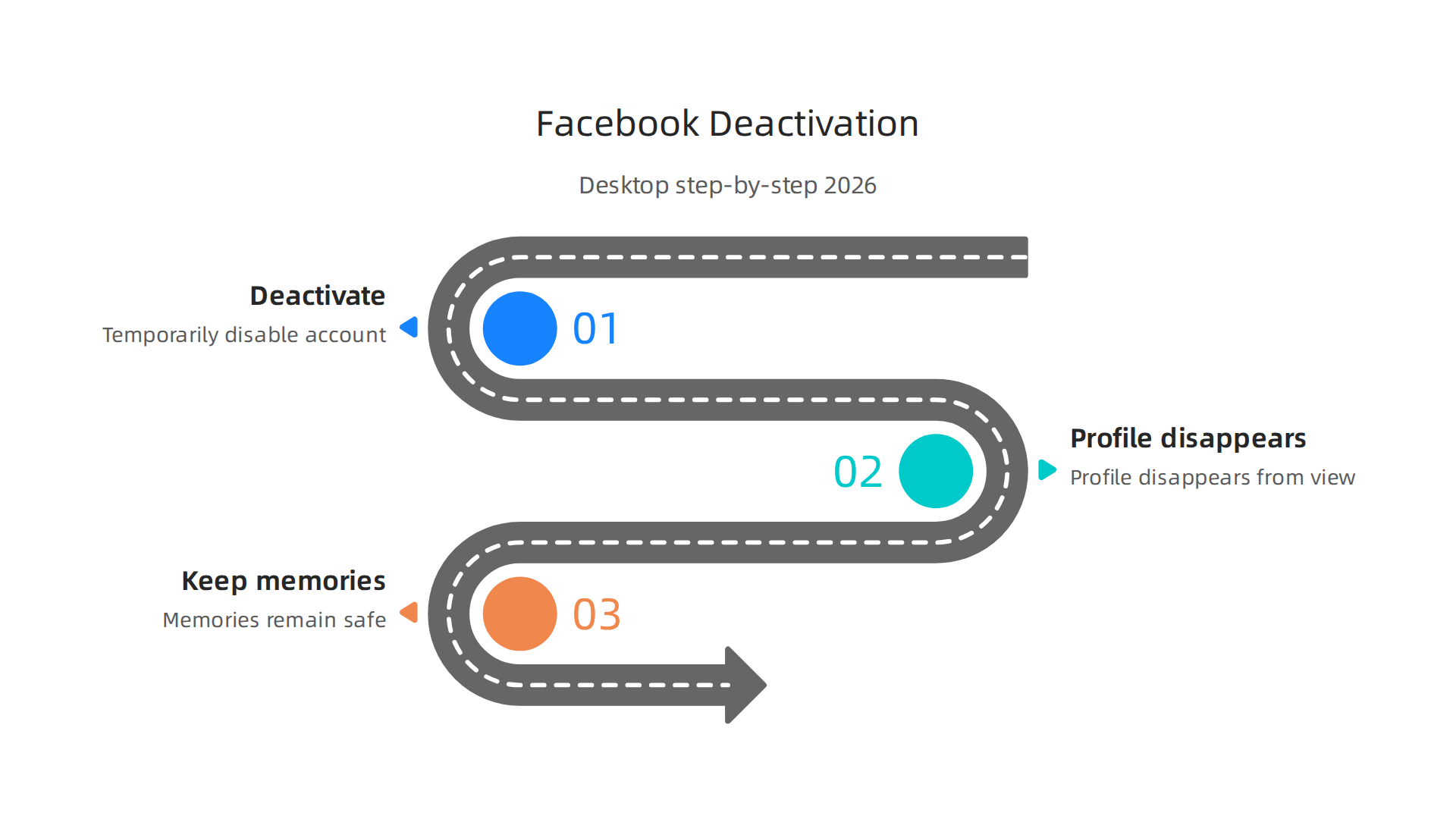
Here’s a simple way to disable your Facebook account from your desktop:
- Log into your Facebook account: Go to Facebook.com on your computer and sign in with your username and password.

- Go to Settings & Privacy: Look at the very top right corner of your Facebook page. You’ll usually see your profile picture or a small arrow. Click on it. A menu will drop down. From that menu, click on "Settings & Privacy," then choose "Settings."
- Find the Accounts Center: On the left side of the screen, you will see a list of options. Near the top, look for "Accounts Center" and click on it. This is where Facebook manages your main account settings.
- Go to Personal Details: Inside the Accounts Center, find and click on "Personal Details."
- Look for Account Ownership and Control: Under "Personal Details," you’ll see "Account Ownership and Control." Click this option.
- Choose Deactivation or Deletion: You’ll now see two choices: "Deactivation or Deletion." Click on it.
- Select your Facebook profile: If you have more than one profile linked, pick the one you want to deactivate.
- Pick "Deactivate Account": Facebook will ask if you want to deactivate or delete. Make sure "Deactivate Account" is chosen. Remember, deactivating is like putting your account to sleep; deleting is permanent.
- Follow the prompts: Facebook will ask you to enter your password again to make sure it’s really you. It might also ask why you’re leaving. You can pick a reason from the list or skip it.
- Confirm: Click "Deactivate My Account" to finish the process.
It’s a straightforward process, but if you prefer to watch someone do it, many guides show you how to deactivate your Facebook account with current 2026 steps [1].
What if the menus look different?
Facebook changes its look sometimes. If you can’t find the exact words above, try to look for similar options:
- "Settings" might be under a gear icon.
- "Account and Profile" might be used instead of "Personal Details."
- The key is to always aim for "Settings," then "Account Ownership and Control," and then "Deactivation or Deletion."
How to know it worked
After you finish the steps, your Facebook profile will disappear from view. Your friends won’t be able to find you or see your posts. However, your Messenger chats might still be active, and friends can still message you. If you want to come back, simply log back into your account at any time, and Facebook will reactivate it.
How to deactivate Facebook on iPhone and Android — step-by-step (2026)
Taking a break from Facebook when you’re mostly on your phone or tablet is just as easy as doing it from a computer. The steps to deactivate your Facebook account from the mobile app on your iPhone or Android phone in 2026 are very similar to the desktop version. This guide will show you how to disable your Facebook account right from your pocket.

Here’s how to temporarily deactivate Facebook using the mobile app:
- Open the Facebook app: Find the blue Facebook app on your phone and tap it to open. Make sure you’re logged into the account you want to deactivate.
- Go to the Menu: Look for the menu icon. On iPhones, it’s usually three horizontal lines in the bottom right corner. On Android phones, it might be in the top right. Tap this icon to open the menu.
- Find Settings & Privacy: Scroll down in the menu until you see "Settings & Privacy." Tap on it, then tap "Settings."
- Head to Accounts Center: At the top of the Settings page, you’ll see "Accounts Center." This is Facebook’s central spot for managing your accounts, so tap it.
- Choose Personal Details: Inside the Accounts Center, tap on "Personal Details."
- Look for Account Ownership and Control: Under "Personal Details," you will find "Account Ownership and Control." Tap this option.
- Select Deactivation or Deletion: Now, tap on "Deactivation or Deletion."
- Pick your Facebook profile: If you have more than one profile, choose the one you want to put to sleep.
- Choose "Deactivate Account": Facebook will ask if you want to deactivate or delete. Be sure to pick "Deactivate Account" to make your profile temporarily disappear. Remember, deactivating means you can come back anytime. Deleting is forever.
- Finish the steps: Facebook will ask for your password again to confirm it’s really you. It might also ask why you’re leaving. You can pick a reason or just skip it.
- Confirm Deactivation: Tap "Deactivate My Account" to make it final.
And that’s it! Your profile should disappear from Facebook. Many resources, including video guides, show you how to deactivate Facebook if you prefer visual instructions for 2026 [1, 2].
What to remember when you deactivate on mobile
Even after you deactivate your Facebook account, a few things might still happen on your phone:
- Messenger App: Your Messenger app might still work, and friends could still message you. If you want to stop that too, you’ll need to turn off notifications for Messenger or uninstall that app as well.
- App Updates: Facebook often updates its app. If the menu names don’t look exactly like what’s written here, look for similar words like "Settings," "Privacy," or "Account." The main path usually stays similar [3].
- Notifications: Some phones might still show old notifications from Facebook if you don’t remove the app, even though your account is deactivated. To stop all notifications, you might need to uninstall the app or adjust your phone’s notification settings.
Common mobile problems and easy fixes
- Outdated App: If you’re having trouble finding these options, make sure your Facebook app is updated to the newest version. Visit your phone’s app store (App Store for iPhone, Google Play Store for Android) and search for Facebook to check for updates.
- Cached Login: Sometimes, your app keeps old info. Try logging out of Facebook completely and then logging back in before you start the deactivation process.
- Multiple Accounts: If you manage several Facebook accounts or pages, double-check that you’re picking the correct profile to deactivate.
When you’re ready to come back, simply log into the Facebook app or website with your usual username and password, and your account will be reactivated automatically.
Reactivating your account and what to expect after you return
So, you decided to take a break and deactivate Facebook account. Now you’re ready to come back. Good news! Getting your Facebook account back is much easier than taking a break. Since you chose to "deactivate" and not "delete," all your information is usually waiting for you.
How to reactivate your Facebook account
Here’s how to come back to Facebook in 2026:
- Open Facebook: Just open the Facebook app on your phone or go to the Facebook website on your computer.
- Log in: Type in your usual email or phone number and your password.
- That’s it! Once you log in, your account automatically becomes active again. Facebook usually brings everything back just as you left it.
What comes back and what to check
When you reactivate your Facebook account, most of your stuff comes back:
- Your profile: Your profile, photos, friends list, and past posts will all be visible again.
- Friends and messages: Your friends will see you online again, and you can send and receive messages.
- Likes and comments: All the likes, comments, and shares you made will reappear.
However, a few things might need a quick check:
- Messenger App: If you kept using Messenger while your Facebook profile was off, it will still work as before. If you stopped using Messenger, you might just need to log in again.
- Third-party apps: If you use Facebook to log into other apps or websites, you might need to give them permission again. Sometimes these connections can pause when you deactivate Facebook.
- Page roles and ad accounts: If you manage Facebook Pages or ad accounts, double-check that your roles and permissions are still correct. Sometimes, a temporary break can cause minor hiccups.
Data and privacy while you’re away
When you choose to deactivate Facebook, your data isn’t usually gone forever. Facebook holds onto your information so it can bring everything back when you return. This is different from deleting your account, where the goal is to permanently remove your data [1].
In 2026, there are more talks about data privacy and what companies can keep. For example, laws in places like California aim to give people more control over their online data, especially if they decide to delete accounts [2, 3]. But for deactivation, the idea is that your data is just hidden, not removed.
Many people choose to download their Facebook data before making big changes to their account, just to be safe [4]. This lets you keep copies of your photos, posts, and messages on your own computer [5]. There are many easy guides available in 2026 that show you how to download your Facebook data, whether you use an iPhone or an Android phone [6, 7, 8].
Coming back to Facebook is simple. Just log in, and your profile will be ready for you again!
When you decide to deactivate your Facebook account, it’s not just about your personal profile. If you run a business or manage Facebook Pages, there are special things you need to think about. It’s important to know how to disable Facebook account without causing problems for your work.
Your Facebook Pages, Ad Accounts, and Business Manager
Here’s the thing: Facebook Pages always need a personal profile to be their admin. Even if you use Facebook Business Manager to keep your work and personal life separate, your personal profile is still the main key to access these business tools
[2, 3].
So, if you choose to deactivate Facebook, it can cause issues for your Facebook Pages, ad accounts, and Business Manager roles. If you are the only admin for a Page, that Page might not have anyone to manage it anymore. This means new posts can’t be made, and messages might not get answered.
To stop this from happening, always make sure there is more than one admin for any Facebook Page or Business Manager account you manage. Before you deactivate your personal account, add another trusted person as an admin.

This way, if you need to step away and deactivate Facebook account, your business can keep running smoothly. You might even want to learn how to remove yourself from a Business Manager if you’re no longer part of that team, so others can manage it easily [4].
What Happens to Messenger?
We talked a bit about Messenger before. When you choose to deactivate Facebook, your personal profile becomes hidden. People can’t search for you, and your profile picture might show up as a gray outline or "Facebook User" in old chats.
However, the messages you sent before you deactivated your account usually stay visible in other people’s Messenger apps. You won’t be able to send or receive new messages until you reactivate your Facebook account. If you were using Messenger separately, you might need to log back in when you return.
Tips for Businesses and Page Admins
To avoid any headaches when you need to deactivate Facebook:
- Appoint Backup Admins: This is the most important step. Make sure at least one other trusted person has admin access to all your Facebook Pages and Business Manager accounts.
- Use Business Manager: If you don’t already, use Facebook Business Manager. It helps you manage multiple Pages and ad accounts, and lets you work with a team more easily [2].
- Plan Ahead: If you know you’re going to disable Facebook account, tell your team. Make sure all important tasks are covered or transferred.
Taking these steps helps make sure your business keeps going strong, even if you need to take a break from your personal Facebook profile.
Summary
This guide explains how to deactivate your Facebook account in 2026, when to choose deactivation versus permanent deletion, and what to expect before, during, and after the process. It covers why deactivation is a good temporary option, how to back up your photos, posts, and messages, and how connected apps and logins can be affected. You’ll find clear, step-by-step instructions for both desktop and mobile apps, plus tips for managing Pages, ad accounts, and Business Manager roles so your business activity isn’t interrupted. The article also explains what remains visible (for example, past messages), how to reactivate quickly, and troubleshooting fixes if app menus look different. After reading, you’ll know how to safely pause your Facebook presence, protect important data, and return without surprises.