How Appointment Setters Book More Calls Using Facebook Creator Studio
· 19 min read

Introduction: Why Facebook Creator Studio Matters for Appointment Setters
As an appointment setter, your time is your biggest asset. Every minute you spend jumping between different platforms or manually scheduling posts is a minute you could be connecting with a prospect. That’s where Creator Studio Facebook becomes a game changer.

Creator Studio is a free, centralized dashboard from Meta.
It lets you manage content, schedule posts, and track performance across both Facebook and Instagram from one place. According to Meta, Creator Studio gives you all the tools you need to effectively post, manage, and track performance of your content across all your Pages in one place. That means less busywork and more time focused on what really matters: booking appointments.
For appointment setters, this tool does more than just save hours each week. It helps you build a professional brand that attracts qualified leads. With features like the Facebook Ads Library, you can research what your competitors are doing. You can even use Creator Studio to organize your content around common client pain points, making it easier to download FB lead form leads and follow up quickly.
When you master Creator Studio, you position yourself as a Facebook ads specialist who understands Facebook ad optimization. That credibility makes prospects more likely to trust you with their business. This guide walks you through practical steps to use Creator Studio for appointment-setting success, backed by official features and real-world experience. For a complete walkthrough, check out this in-depth Creator Studio tutorial for 2026.
What Is Facebook Creator Studio and How Does It Work?
So what exactly is Creator Studio Facebook, and how can an appointment setter use it without getting lost? Let’s break it down.
Creator Studio is Meta’s free dashboard that brings all your Facebook Pages and Instagram accounts into one place. Instead of logging into multiple tools, you can post, schedule, and track everything from a single screen. Meta calls it the one place where you can effectively post, manage, and track performance of your content across all your Pages in one place. For someone who needs to stay organized while chasing leads, this is gold.
The dashboard has a few key modules that matter most to appointment setters:
- Content Library : This is where every post, photo, and video lives. You can see what’s already published, what’s scheduled, and what drafts you have. No more digging through old files.
- Publishing Tools : Schedule posts in advance, create carousels, or draft quick updates. This module lets you plan your content around client pain points and follow-up sequences.
- Insights / Analytics : See what posts get the most engagement. Spot trends in when your audience is active. This helps you time your posts to catch decision makers.
- Inbox for Messages : Read and reply to comments and messages from one inbox. Quick responses build trust and can turn a question into a booked call.
- Monetization (if eligible): For pages that meet requirements, this section shows revenue tools. Not essential for appointment setters, but good to know it’s there.
The basic interface is not as overwhelming as it looks. Once you understand that everything is grouped into these modules, you can jump straight to what you need. Want to check your top performing post so you can create a similar one? Go to Insights. Need to schedule a week of content around a new offer? Use Publishing Tools.
For appointment setters, this structure makes it easy to maintain a professional Facebook page without spending hours each day. You can even use the Facebook Ads Library inside Creator Studio to research what competitors are doing with their ad creatives. That intel helps you craft posts that stand out.
If you are new to the platform, the best way to learn is to open it up and click around with purpose. Focus on Publishing Tools and Insights first. Those two modules alone can save you time and improve your content strategy.
Need a visual step-by-step walkthrough? Check out this Creator Studio tutorial for 2026 that covers scheduling, analytics, and troubleshooting in plain language.
Setting Up Your Creator Studio Dashboard for Appointment-Setting Success
Now that you understand what Creator Studio can do, it is time to set it up so it works for your specific goals as an appointment setter.
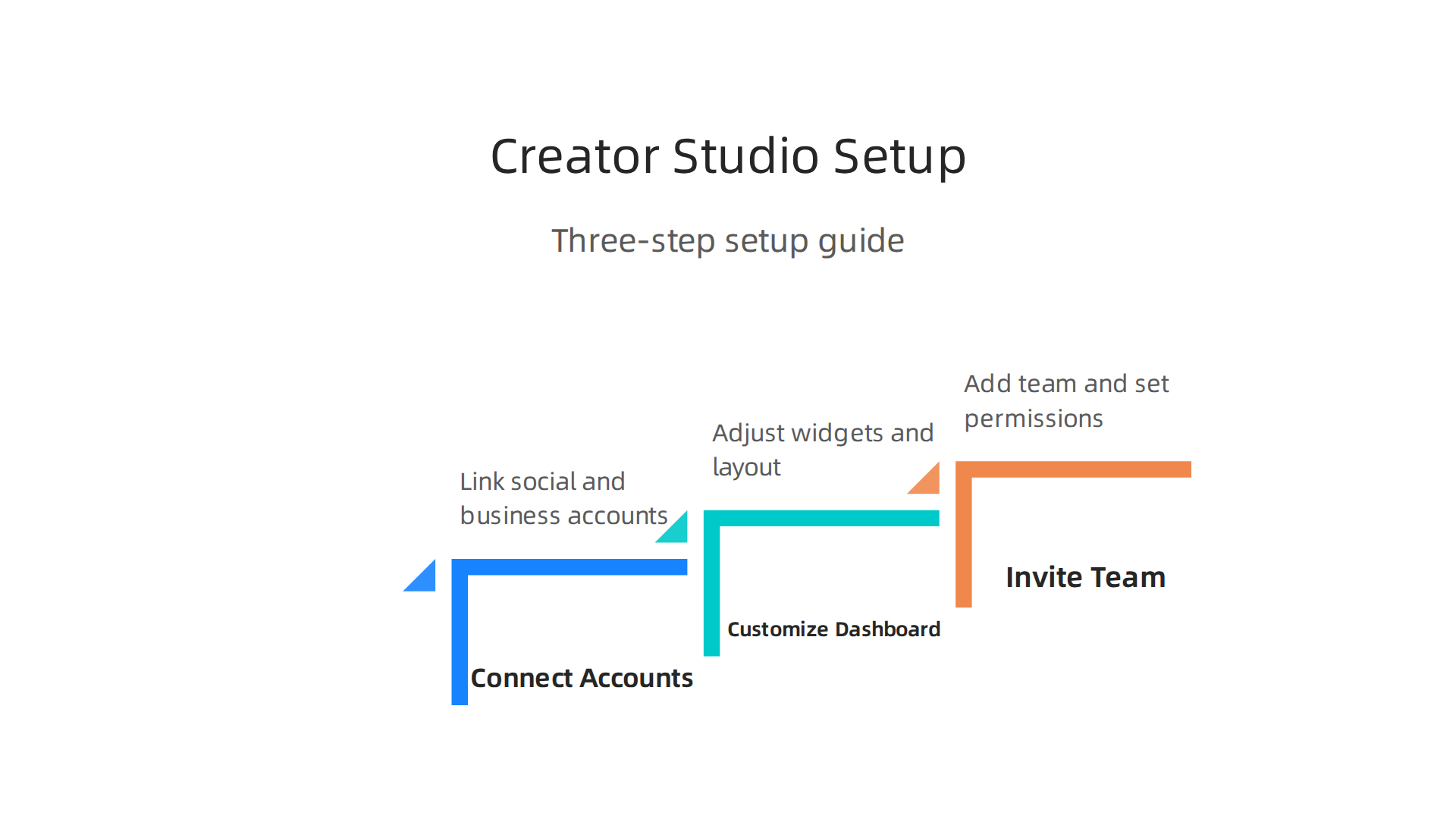
The right setup saves you hours each week and helps you stay focused on what matters: booking calls.
Step 1: Connect Your Facebook Page and Instagram Business Account
Start by linking the accounts you use to find leads. In Creator Studio, click the profile icon and select "Add Account." Choose your Facebook Page first. Then, if you use Instagram for outreach or content, add your Instagram Business account. Once linked, you will see all your content and messages in one dashboard. This is where you can effectively post, manage, and track performance across all your Pages, as Meta explains in their Creator Studio deep dive. No more switching between tabs.
Step 2: Customize Your View
The default dashboard shows many widgets. You only need a few at first. Pin the content calendar widget to your main view so you can see what posts are scheduled and when. Then add the analytics widget for quick access to engagement numbers. This way you can spot which posts bring in the most comments or messages, a sign that people are interested in your offer. If you want to research competitors, use the Facebook Ads Library to see their top ads and copy what works.
Step 3: Invite Team Members If Needed
If you work in a sales team with a manager, virtual assistant, or another setter, you can invite them to collaborate. Go to "Settings" then "People" and add team members by email. Set permissions carefully. Give full access only to those who need to publish or change settings. For others, use "Analyst" or "Advertiser" roles so they can see data but not alter anything. This keeps your content safe and your process organized. For a visual walkthrough of team setup, this 2026 guide for Facebook Creator Studio teams shows the permissions screen step by step.
Once your dashboard is set, you will have a clean, focused workspace. You can jump straight to your content calendar each morning, check engagement, and plan your next lead-generating post. No clutter. No wasted time.
Using Creator Studio for Lead Generation: Content Strategy That Works
You have your Creator Studio dashboard set up and looking clean. But a tidy workspace alone won’t book calls. You need content that actually generates leads. Think of your Facebook Page and Instagram account as a 24/7 networking event. The right posts attract the right people.
Plan Content That Matches Your Ideal Customer
Before you create anything, get crystal clear on who you want to talk to. Your ideal customer profile should guide every decision. A solid content strategy for 2026 uses a mix of post types that serve different purposes, as highlighted in this B2B lead generation strategy guide.
Here is a simple framework for your content calendar:
- Educational posts (40% of your content). Teach something valuable. Share tips about common pain points your prospects face. Show you understand their world.
- Case studies and social proof (30%). Real stories build trust fast. Share a short win from a client you helped. Include specific results when possible.
- Direct calls to action (30%). These are your booking posts. Clear, simple invitations to book a call or download a free resource.
This mix keeps your audience engaged while warming them up to take action. The B2B content marketing landscape in 2026 favors value-driven content that speaks directly to buyer needs, as Sprout Social’s strategy guide explains.
Schedule Posts That Spark Conversations
Go to the "Create Post" tool in your Creator Studio. This is where you turn your content calendar into scheduled posts. Do not just post and hope. Use interactive formats to warm up leads:
- Polls. Ask a question related to your prospect’s biggest challenge. People love to share their opinion.
- Questions. Use the question sticker or a simple text post. "What is your biggest struggle with booking calls?" invites replies.
- Quizzes or "this or that" formats. These get high engagement and tell you what your audience cares about.
Every comment or direct message is a conversation starter. Reply quickly and naturally guide the person toward a discovery call.
Cross-Post to Instagram for More Reach
Creator Studio lets you publish the same post to both Facebook and Instagram with one click. Use it. Instagram reaches a different audience segment, often younger decision makers who prefer visual content. When someone engages with your cross-posted content, follow up via direct message. A friendly "Hey, saw you liked my post about [topic]. Want to chat about it?" works wonders.
For a deeper look at building a full lead generation engine from your content, this B2B lead generation strategies video breaks down the exact tactics that top setters use in 2026.
Your content strategy does not need to be complicated. A simple calendar with the right mix of value, proof, and calls to action will fill your pipeline. Start small. Post consistently. Watch the leads roll in.
Content Scheduling and Automation: Save Time While Staying Consistent
You have a solid content calendar and a clear strategy for booking calls. But here is the reality: you cannot sit at your computer and manually post every single day. You have calls to make, leads to follow up with, and a pipeline to build. That is where scheduling and automation in Creator Studio become your best friend.
Think of this as setting your content on autopilot while you focus on high-value sales activities. The goal is to stay visible to your audience every day without spending hours at your desk.
Use the Bulk Uploader to Schedule Weeks of Content at Once
Creator Studio has a powerful bulk uploader that lets you schedule dozens of posts in one go. This is a game changer for remote sales pros managing their own brand. Instead of posting one at a time, you can upload a batch of posts, set each one to a specific date and time, and walk away.
How does it work? From your Creator Studio dashboard, go to the "Create Post" section. You will see an option to import multiple posts from a CSV file or select them individually. Pick your images, videos, or carousel posts, and assign a future publish date for each one. This step-by-step scheduling guide from SocialRails covers the exact process for 2026.
The bulk uploader is perfect for planning your weekly or monthly content in one session. Set aside 30 minutes each week to queue up your educational posts, social proof stories, and direct calls to action. Then get back to the work that actually books appointments.
Leverage Drafts for Auto-Publishing
Not ready to publish everything at once? Use the "Save as Draft" feature to queue content for busy periods. When you have a slow day, create a handful of posts and save them as drafts. Then come back later and schedule them for specific times.
This works especially well when you are traveling or have a heavy day of calls. Prepare your posts ahead of time, and let Creator Studio handle the publishing while you focus on prospects. The complete scheduling guide from PostQuick explains how to set up draft posts for both Facebook Pages and Groups.
Post When Your Audience Is Active
Scheduling is only useful if your posts go out at the right times. Nothing hurts engagement more than posting when your ideal prospects are asleep or busy working. Creator Studio includes an analytics tab that shows you when your followers are most active.
Check your audience insights to find the peak times for engagement. For B2B appointment setters, this is often early mornings, lunch breaks, and early evenings. Schedule your most important posts, like direct calls to action, during those windows. The social media content scheduling guide from InfluenceFlow recommends testing different time slots and tracking which ones drive the most clicks and messages.
Once you find your sweet spot, set a recurring schedule. Your audience will start to expect your posts at certain times, which builds familiarity and trust.
A Simple Automation Works
You do not need fancy tools or complicated workflows to keep your content flowing. Creator Studio’s built-in scheduling and automation features can handle everything. The key is to batch your content creation, set consistent posting times, and then let the system run while you do the real work of booking calls.
Remember, consistency beats perfection every time. A steady stream of value will keep you top of mind with prospects and fill your pipeline with qualified leads.
Analyzing Performance with Creator Studio Insights
Scheduling your posts saves you a ton of time. But you also need to know if your hard work is actually paying off. This is where the Creator Studio Facebook Insights tab becomes your best friend. It shows you exactly what is working and what is falling flat.
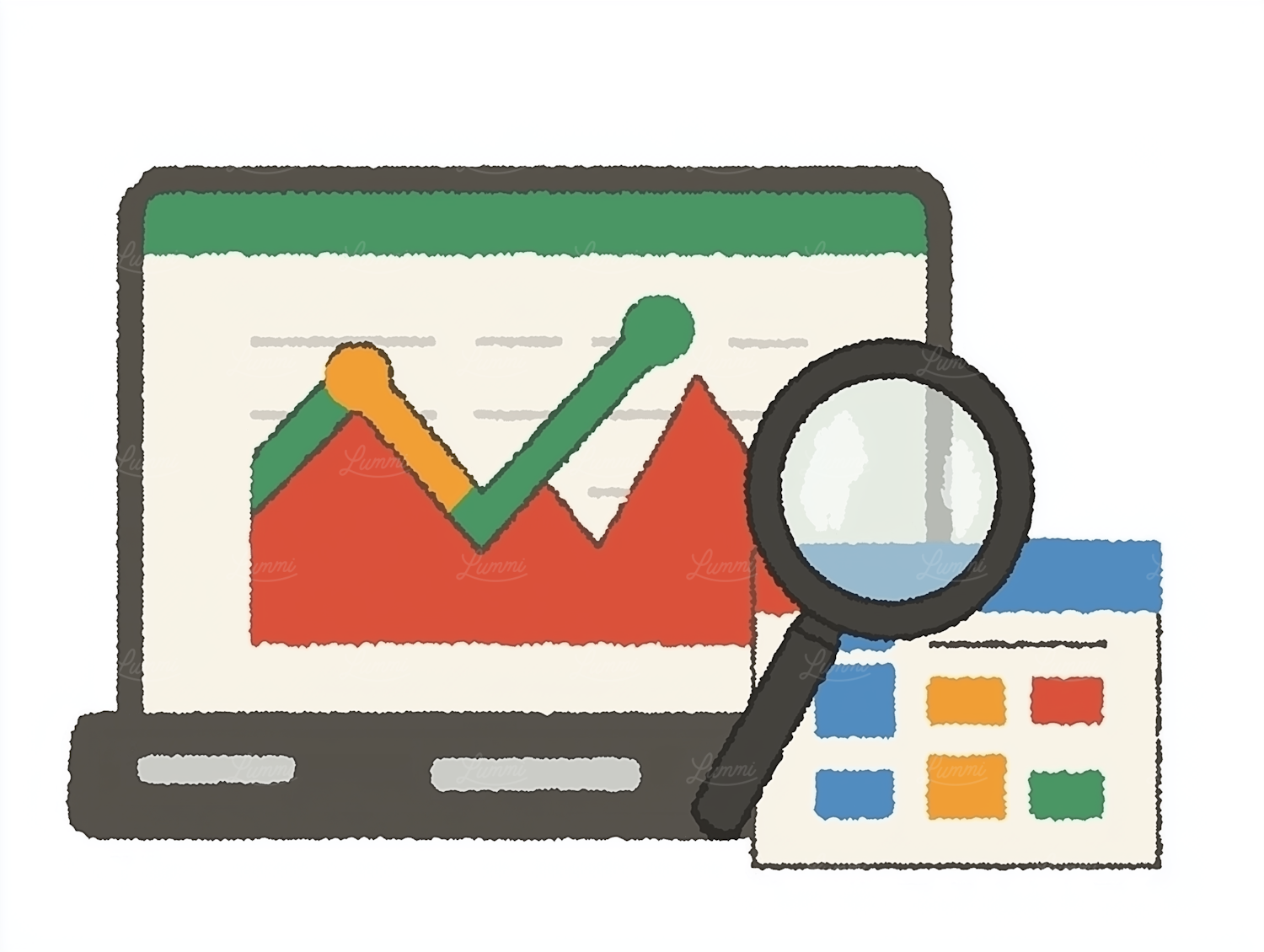
Instead of guessing what your audience wants, you can look at the real numbers. Focus on three key metrics. Reach tells you how many people saw your post. Engagement counts the likes, comments, and shares. Clicks show you how many people wanted to learn more.
The best way to track real results is with UTM parameters. A UTM is a simple code added to your link. It tells you exactly which post drove a visitor to your website or lead form. For a detailed walkthrough on setting this up, check out this guide to the Insights tab in Creator Studio.
In the "Posts" tab, sort your content by the ones that got the most profile visits and direct messages. These are your top performers. For appointment setters, a direct message is worth ten times more than a simple like. It means a prospect is interested in talking. Study those posts carefully and create more content like them.
Do not just check the numbers once a month. Export your data regularly to track long-term trends. This helps you see which content topics keep filling your pipeline. This data-driven strategy is a foundational element of proven B2B lead generation best practices.
You do not need to be a facebook ads specialist to understand these reports. Everything is laid out in simple charts. But you do need to act on the data. If one topic gets lots of clicks, double down on it. If another topic gets ignored, try something new. This is the core of good facebook ad optimization, even if you are just using organic content to build trust.
You can take it a step further by connecting your data to your ad account. When you download fb lead form leads, you can match them back to the organic posts that generated the interest. This closes the loop. Your content strategy becomes a predictable engine for your appointment-setting business. Creator Studio gives you all the insights. It is up to you to use them.
Best Practices for Remote Appointment Setters Using Creator Studio
You now know how to read your analytics. The next step is to build habits that turn those numbers into actual appointments. If you work from home, it is easy to get distracted. But with a few simple systems, you can turn Creator Studio into your lead generation command center.
Set up a dedicated workspace and weekly review time
Working remotely means you need a clear boundary between work and life. Pick a quiet spot in your home where you can focus.

Then block out 30 minutes every week to review your Creator Studio Facebook insights. Do not skip this. Look at which posts got the most direct messages and profile visits. Those are your gold mines. If you see a topic that works, schedule more content around it. This weekly habit keeps your strategy sharp without needing a facebook ads specialist. It is simple facebook ad optimization applied to organic content. For more tips on building an appointment setting routine, check out these proven appointment setting tips.
Use the inbox to capture leads instantly
Most appointment setters lose leads because they reply too late. Creator Studio has a unified inbox that collects comments and messages from both Facebook and Instagram. Check this inbox at least three times a day. When someone asks a question or shows interest, reply within minutes. A fast reply builds trust and keeps the conversation warm. You can even set up saved replies for common questions like "How much does it cost?" or "Can you tell me more?" This saves you time and makes you look professional. If you want to understand the full role of an appointment setter, this guide to appointment setters breaks down the key responsibilities.
Integrate with your CRM or tracking system
Here is the biggest upgrade you can make. Connect your Facebook and Instagram leads directly to your CRM or spreadsheet. You can do this manually by copying lead details from Creator Studio into your system. But for serious appointment setters, use a webhook tool like Zapier or Make to automate the process.
When someone messages you or fills out a lead form, their info goes straight into your pipeline. This closes the loop we talked about earlier. You can see exactly which post or ad generated the lead. And if you ever need to download fb lead form leads for deeper analysis, you have a clean record to work with.
By following these three practices, you stop guessing and start building a predictable lead flow. You do not need fancy tools. You just need Creator Studio, a weekly schedule, and a way to track your results. This is how remote appointment setters turn Facebook and Instagram into a steady stream of booked meetings.
Common Mistakes Appointment Setters Make with Creator Studio (and How to Avoid Them)
You post content every day. You think it looks great. But no one is booking calls. What is going wrong?
Most remote appointment setters make the same three mistakes in Creator Studio.
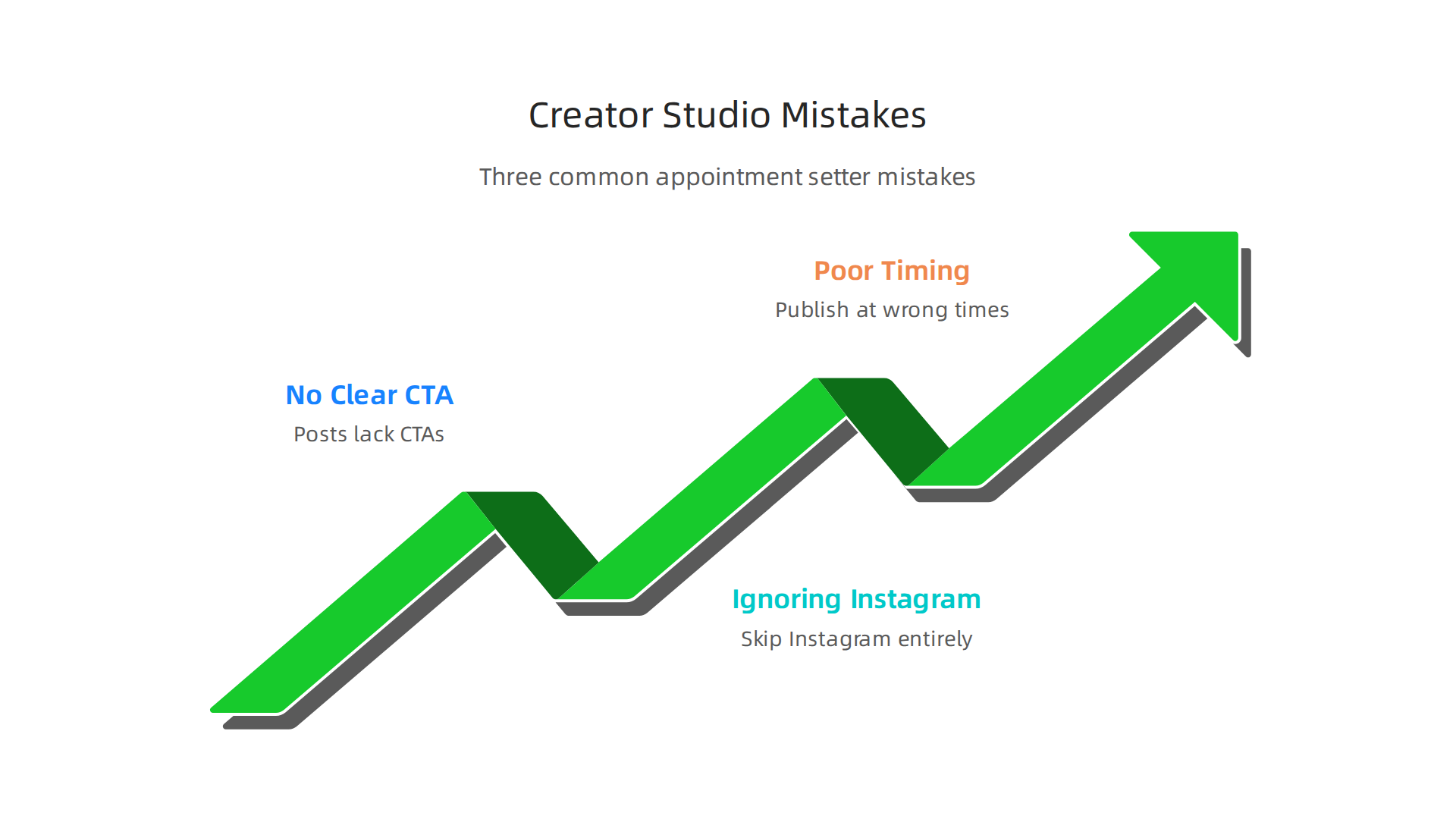
The good news is each one is easy to fix once you know what to look for.
Mistake 1: Posting without a clear call to action or value
Here is the most common problem. You share a helpful tip or a funny meme but you never tell people what to do next. Organic leads do not magically appear. People need direction.
Every post should answer one question for the reader: "What should I do now?" Add a simple CTA like "Message me for a free quote" or "Comment ‘yes’ and I will send you details." Without a strong value hook, your content is just noise. Studies show that unclear messaging hurts lead generation across Facebook. If you are also running ads, this same mistake lowers your return.
To fix it, plan one clear CTA for every post. Use Creator Studio’s scheduling tool to add the link or instruction before you publish.
Mistake 2: Ignoring Instagram completely
Many appointment setters put all their energy into Facebook. They forget that Creator Studio also manages Instagram. That is a huge missed opportunity.
Your ideal leads might be scrolling Instagram right now. They may never see your Facebook page. By neglecting Instagram, you skip an entire audience that is ready to engage. The unified inbox in Creator Studio brings both platforms together. Use it. Check messages from both channels. You can also cross-post the same content to Instagram with one click. This doubles your reach without doubling your work.
Mistake 3: Posting too often or at the wrong time
Some setters think more posts means more leads. That is not true. Overposting can annoy your audience and tank your engagement. Worse, posting when your followers are asleep means fewer people see your content.
Creator Studio’s Insights tab shows you exactly when your audience is online. Use this data. It tells you the best days and times to post for maximum reach. If you ignore these numbers, you are flying blind. A quick weekly review of your Insights tab can fix your whole schedule.
How to avoid all three mistakes
The solution is simple. Before you publish anything, ask yourself: Does this post have a clear CTA? Am I posting to both Facebook and Instagram? Am I using my audience data to pick the best time?
If the answer is no to any of these, hold back. Tweak the post until it passes the test. This small habit turns a scattered content strategy into a reliable lead machine. And that is what actually fills your calendar with appointments.
Summary
This article explains how appointment setters can use Facebook Creator Studio to save time, attract qualified leads, and book more calls. It walks through what Creator Studio is, the key modules to focus on (Content Library, Publishing Tools, Insights, Inbox), and step-by-step setup for linking Facebook Pages and Instagram Business accounts. You’ll learn a practical content framework—educational posts, case studies, and direct CTAs—plus scheduling tactics like bulk uploads, drafts, and posting at peak times to keep visibility without manual work. The guide also covers how to analyze performance with Insights and UTMs, how to integrate leads into a CRM, and simple remote-work habits that turn activity into appointments. Finally, it highlights common mistakes (no CTA, ignoring Instagram, wrong timing) and fixes so your organic content becomes a predictable lead engine. After reading, you’ll be able to set up Creator Studio, schedule consistent lead-generating content, respond quickly to messages, and measure which posts actually drive booked calls.